 Saltar al contenido



🚀 Quick Start (Just Show Me How)
Windows Explorer is your file manager. Think of it as your filing cabinet for your entire computer.
Here’s what you need to know:
- It’s that folder icon in your taskbar (bottom-left usually)
- You organize files, move stuff around, delete things
- Most people use 10% of what it can do
- We’re going to show you everything
Let’s dive in.
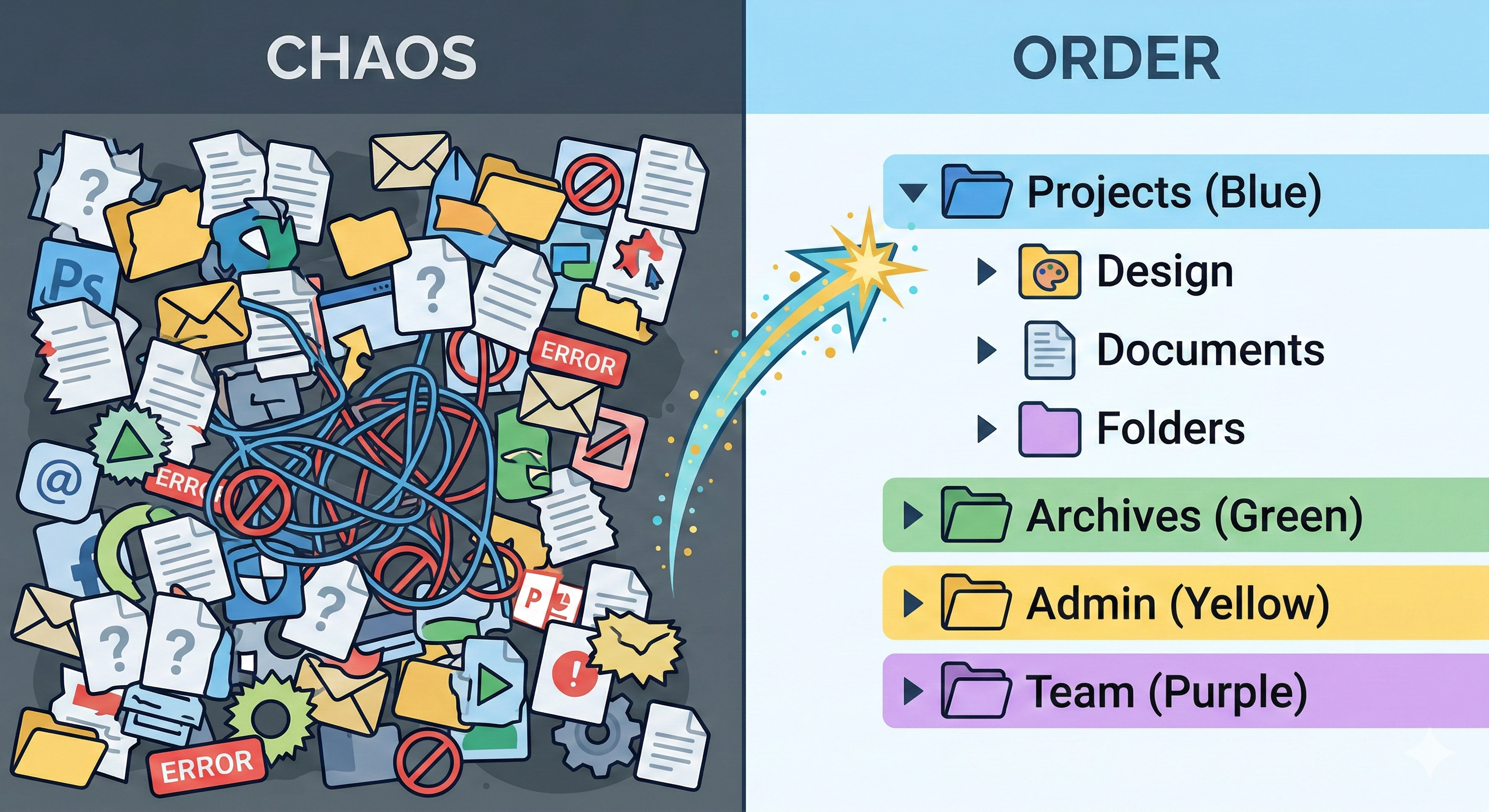
🤔 What Even Is Windows Explorer? (And Why You Need It)
Windows Explorer is basically a visual interface for your entire hard drive. Everything on your computer — documents, photos, videos, programs — they’re all files and folders living in folders.
Why is this important?
- If you can’t navigate Windows Explorer, you’re constantly lost trying to find files
- If you can’t use it well, you waste hours looking for that one document
- If you know tricks, you can save hours per month
Simple as that.
Think of it this way: Windows Explorer is like the control center of your computer’s filing system. Master it, and your life gets way easier. You’ll find things faster, stay organized, and actually know where your files are.
—
📂 BEGINNER SECTION: The Basics
**How to Open Windows Explorer**
Three ways to do this:
Way 1 (Easiest): Click the folder icon in your taskbar
- Usually at the bottom of your screen
- Looks like a manila folder
- Click it, boom, Windows Explorer opens
Way 2 (Fastest): Press Windows + E
- Windows key (bottom-left of keyboard) + E
- Instant. My favorite.
Way 3: Right-click any folder and choose “Open”
- Context menu appears
- Select “Open” or “Open with” → “File Explorer”
What you’ll see:
- **Left side:** “Quick Access” folder shortcuts (Desktop, Downloads, Documents, etc.)
- **Middle:** Your files and folders in the current location
- **Top:** Address bar showing where you are, search bar
- **Right-click any file:** Context menu with options (copy, delete, properties, etc.)
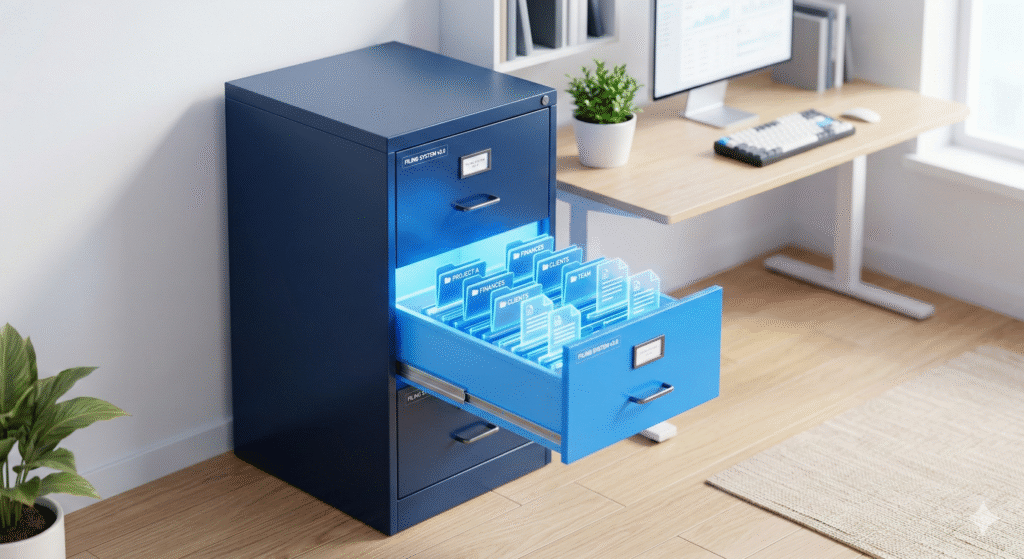
**Understanding Folders vs Files**
This is crucial:
- **Folders** = containers (like a filing cabinet drawer)
- **Files** = actual documents, photos, videos, applications, etc.
Folders can contain other folders. This is called a “directory structure” or “folder hierarchy.”
Pro tip: Your main hard drive is C:\ — everything else lives inside that. When you see `C:\Users\YourName\Documents`, that means: Hard Drive → Users folder → Your Name folder → Documents folder.
**Basic Navigation**
- **Double-click** to open a folder or file
- **Single click** to select it (highlight it)
- **Back button** (arrow at top-left) = go back one level
- **Up arrow** (chevron up at top) = go to the parent folder (one level up)
- **Search box** (top-right) = find files by name
Quick Access shortcuts (left side):
- Desktop
- Downloads
- Documents
- Pictures
- Videos
- This PC (shows all drives)
Click any to jump there instantly. You’ll notice I use these constantly.

**Creating Folders (Organization 101)**
How to create a new folder:
1. Right-click in empty space (not on a file)
2. Choose “New” → “Folder”
3. Name it something useful (not “New Folder”)
4. Press Enter
Drag files into it to organize them.
Example smart folder structure:
“`
Documents/
- 2026/
- January/
- Bills/
- Receipts/
- Personal/
- February/
- Projects/
- Client A/
- Client B/
- Archive/
- 2025/
- 2024/
“`
This structure makes finding things super fast. No more random files everywhere.
—
🎯 INTERMEDIATE SECTION: Power User Moves
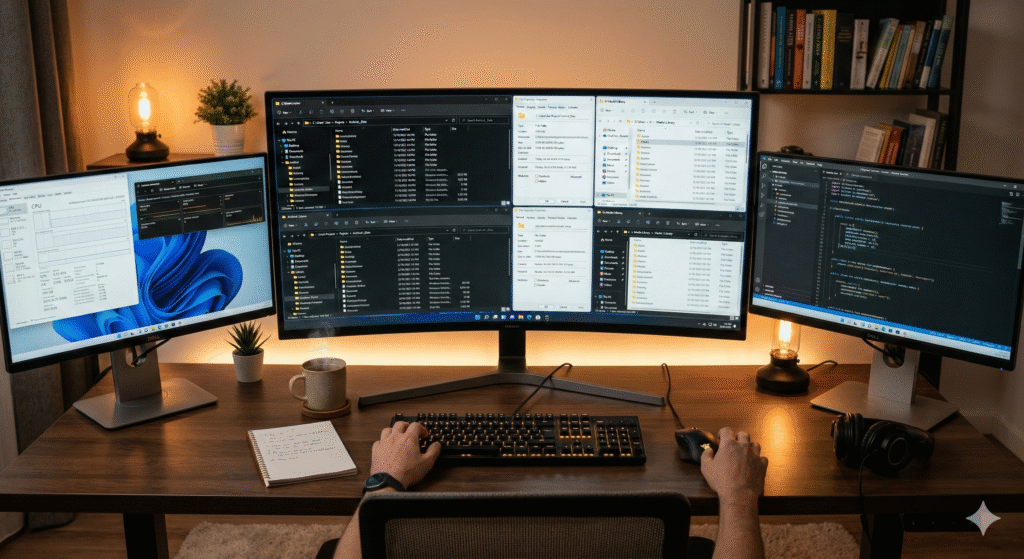
**File Management Like a Boss**
Copying vs Moving (Critical difference):
Copy:
- Right-click → Copy
- Go to new location
- Right-click → Paste
- **Result:** File exists in BOTH places (original stays, copy appears elsewhere)
- **Use when:** You want to keep the original and have a copy somewhere
Move:
- Right-click → Cut
- Go to new location
- Right-click → Paste
- **Result:** File moves to new location (original gone from old place)
- **Use when:** You want to reorganize files
Keyboard shortcuts (faster):
- Ctrl + C = Copy
- Ctrl + X = Cut
- Ctrl + V = Paste
- Delete = Move to Recycle Bin (can be undone)
- Shift + Delete = Permanently delete (careful! Usually can’t undo)
**Searching Like You Mean It**
The search box at the top-right is more powerful than most people think.
Try these searches:
- `type:image` — Find all images
- `size:>10MB` — Find files larger than 10MB
- `modified:today` — Find files you changed today
- `filename:*.pdf` — Find all PDFs
- `”exact phrase”` — Search for exact text match
Example: You can search `type:video size:>1GB modified:lastweek` to find huge video files from last week you forgot about.
This alone saves hours if you learn it.

**Viewing Files Different Ways**
Click View menu (top) and try:
- **Large Icons** — Good for photos, visual browsing
- **Details** — See file size, date modified, type (my favorite)
- **List** — Compact view, quick scanning
- **Tiles** — Medium-sized previews
Pro tip: Use “Details” view when you need to sort by date or size. Click the column header to sort (click again to reverse order).
**Multi-Select Magic**
Select multiple files at once:
- **Ctrl + Click** = Select individual files (hold Ctrl, click each one separately)
- **Shift + Click** = Select a range (click first, Shift+Click last, everything in between is selected)
- **Ctrl + A** = Select all files in current folder
Then you can:
- Delete them all at once
- Move them all to a new folder
- Copy them all to an external drive
- Rename them all (Windows does smart batch renaming)
**File Properties (Know Your Files)**
Right-click any file → Properties
You’ll see:
- **Size** — How much disk space it takes
- **Created** — When you first made/received it
- **Modified** — Last time you changed it
- **Type** — Is it a Word doc, image, video, etc.
- **Attributes** — Is it hidden, read-only, system file, etc.
Pro tip: If a file says “Read-only,” you can’t edit it. Uncheck “Read-only” in Properties to fix it and make it editable.
—
🔥 ADVANCED SECTION: Expert Tricks
**Quick Access Custom Shortcuts**
Want instant access to your most-used folders?
1. Right-click any folder → “Pin to Quick Access”
2. Now it appears in the left panel for instant access (no navigation needed)
3. Drag to reorder if you want them in a specific order
This saves so much time if you have folders you use constantly.
**File Type Filtering**
In the View menu, choose “Filter current view” to show only:
- Images
- Videos
- Documents
- Music
- Etc.
Great when: You have 1,000 files and need to find just photos.
**Show Hidden Files (Ctrl + H)**
Some files are hidden by default (system files, config files, etc.). Toggle “Hidden items” in View menu to see them.
Warning: Don’t delete hidden files unless you 100% know what you’re doing. They’re usually important for Windows to function.
**Address Bar Tricks**
The address bar shows your file path. For example: `C:\Users\YourName\Documents\Projects`
You can:
- **Type a path directly** — Type `C:\Users\YourName\Downloads` and press Enter to jump there instantly
- **Edit the path** — Change “Downloads” to “Desktop” to jump to a different folder
- **Copy the path** — Ctrl + C to copy the full path (useful for tech support)
**Sharing & Permissions**
Right-click any file/folder → Properties → Sharing tab
You can:
- **Share with others** on your home network
- **Set who can access it** (read-only vs edit)
- **Make it read-only** so others can’t edit it
**Batch Rename (Rename Multiple Files at Once)**
1. Select multiple files (Ctrl+Click or Shift+Click)
2. Press F2 (or right-click → Rename)
3. Type new name, press Enter
4. Windows automatically names them: NewName, NewName (2), NewName (3)…
Pro tip: Use this to organize photos or documents quickly. Way faster than renaming one by one.
**Compressed Folders (Zip Files)**
1. Right-click file/folder → “Send to” → “Compressed (zipped) folder”
2. It creates a .zip file (smaller, easier to email)
3. Right-click the .zip → “Extract All” to unzip it
Great for:
- Emailing large files (zip them first, they’re smaller)
- Backing up folders (zips compress well)
- Storing old projects
**Command Line Access (For Real Power Users)**
In Windows 11, you can open PowerShell/Command Prompt from any folder:
- **Shift + Right-click** in empty space → “Open PowerShell here”
- Or: Ctrl + L to go to address bar, type `powershell`, press Enter
Now you can run advanced commands directly. (We’ll skip the technical stuff, but it’s powerful.)
—
🛡️ Important Safety Rules
DO:
- ✅ Organize your files into logical folders
- ✅ Delete files you don’t need (saves space)
- ✅ Keep a backup of important files
- ✅ Use Recycle Bin (it lets you undo deletes for 30 days)
DON’T:
- ❌ Delete anything in C:\Windows (unless you know 100% what you’re doing)
- ❌ Delete hidden system files (they make Windows work)
- ❌ Move Program Files around (breaks programs)
- ❌ Permanently delete files without backups (Shift+Delete is permanent)
—
❓ Common Questions Answered
Q: How do I find where a file is stored?
A: Right-click → Properties → shows location. Or use Search, right-click the result → “Open file location.” This instantly shows you the folder.
Q: Can I recover deleted files from Recycle Bin?
A: Yes! If you deleted it recently, right-click Recycle Bin → “Restore.” If Recycle Bin is empty, you need recovery software (like EaseUS).
Q: What’s the difference between Cut and Delete?
A: Cut = moves file (still exists, just moved). Delete = sends to Recycle Bin (can be recovered). Permanent Delete (Shift+Delete) = gone forever (might be recoverable with software, but not guaranteed).
Q: How do I organize files by date?
A: Switch to Details view, click “Modified” column header to sort by date. Click again to reverse order (newest first vs oldest first).
Q: Should I organize by folder or use search?
A: Both! Good folder structure + good naming = you can find things without searching. Search is a backup for when you forgot where something is.
Q: What’s a file extension?
A: The letters after the dot. `.docx` = Word document, `.jpg` = image, `.mp4` = video. It tells Windows what type of file it is.
—
📖 A Real Story
A friend of mine had thousands of photos mixed with documents, screenshots, and random downloads — all in her Downloads folder. Finding anything took forever.
I spent 30 minutes organizing her into:
- Photos (organized by year)
- Documents (organized by type)
- Screenshots (archived)
- Archive (old stuff)
She said it’s saved her hours. She can find anything in seconds now.
The moral? Spend 1 hour organizing now, save 100 hours searching later.
—
💬 What About You?
How do you organize your files? Do you have a system, or is it chaos? Let me know in the comments. I love seeing how people structure their folders. Some of the best organizational tricks come from real people.
—
📚 Go Deeper
- How to Back Up Your Files (Complete Guide)
- Windows File Compression Explained
- How to Find Missing Files on Windows
—
—





 Spanish
  English