 Saltar al contenido
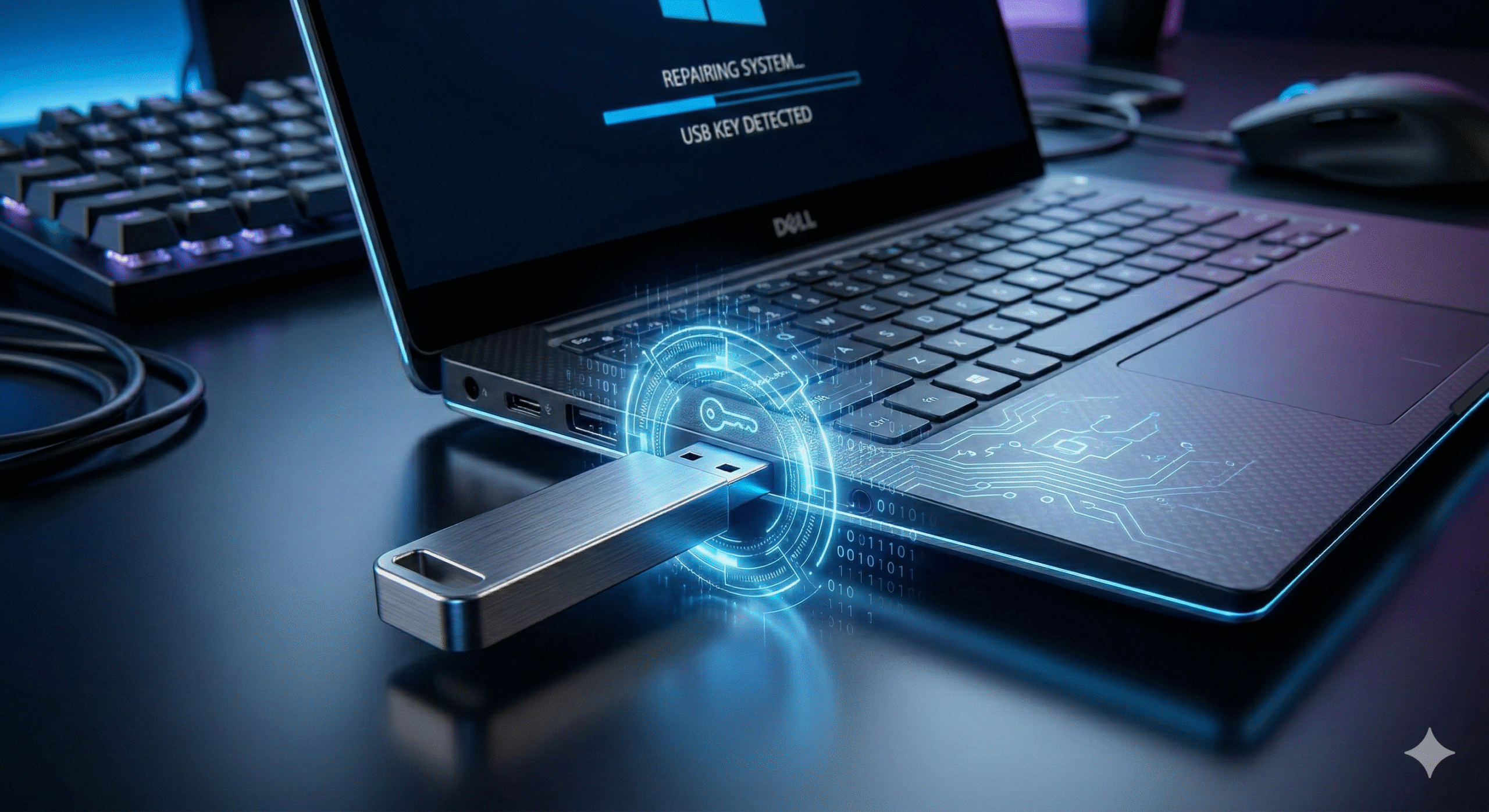

🚀 Quick Fix (Try This First)
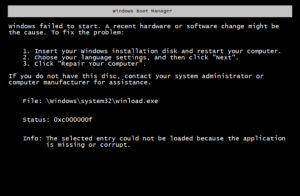
Windows won’t boot? Don’t panic. 90% of boot errors have simple fixes.
Try these in order:
1. Hard restart (the nuclear option)
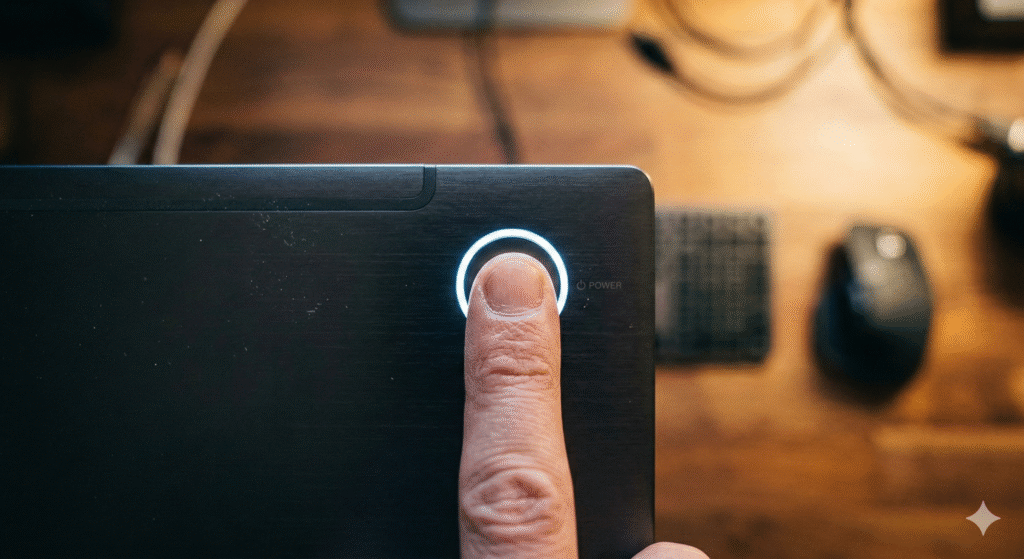
- Press and hold the power button for 10 seconds (forces shutdown)
- Wait 30 seconds
- Power on normally
- Does it work? Done! (About 40% of boot errors fix this way)
2. Boot into Safe Mode
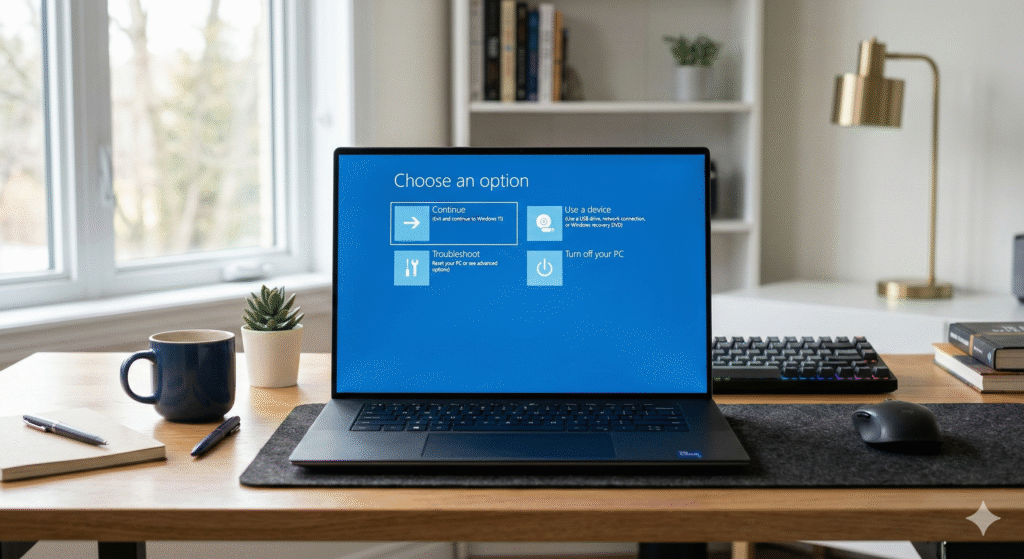
- Keep restarting until you see “Preparing Automatic Repair”
- Eventually you’ll get to Advanced Startup Options
- Choose “Troubleshoot” → “Advanced Options” → “Startup Settings” → press 4 for Safe Mode
- If it boots in Safe Mode, your drive is fine (software problem)
- Restart normally
3. Run Startup Repair
- Same Advanced Startup Options menu
- Choose “Startup Repair”
- Let it run (takes 5-10 minutes)
- Works for many boot errors
If none of these work, keep reading for deeper fixes.
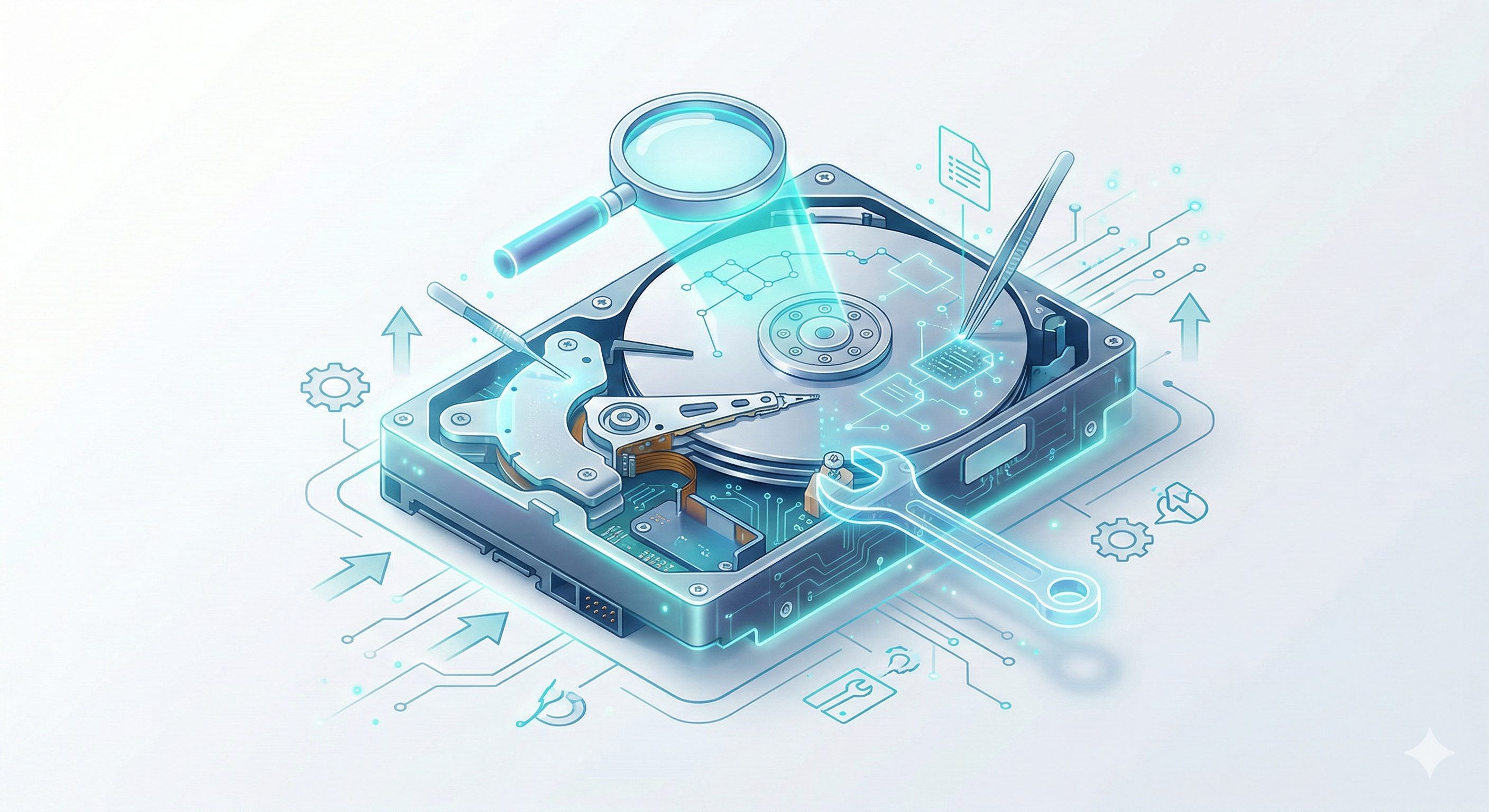
🔍 What Causes Boot Errors?
Your computer goes through steps to start:
1. Power on → BIOS checks hardware
2. Find Windows files
3. Load Windows kernel
4. Start Windows services
5. Show login screen
If ANY step breaks, you get a boot error.
Common causes:
- **Corrupted Windows files** — Software crash or bad update
- **Bad driver** — New driver broke something
- **Malware** — Malicious software is blocking boot
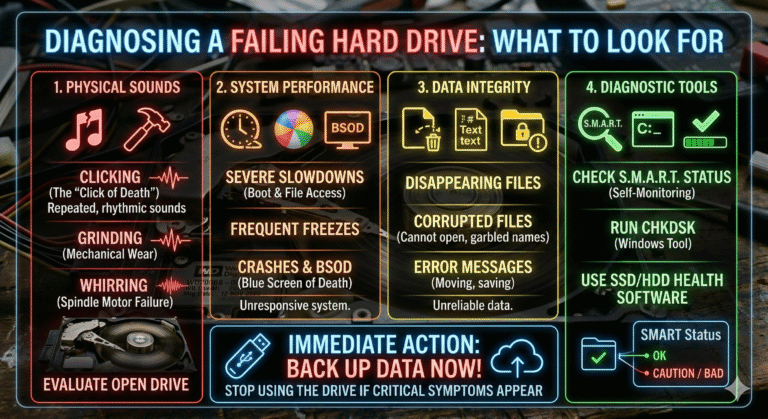
- **Hard drive problems** — Physical drive is failing
- **Boot sector corruption** — Files that tell computer how to start are damaged
- **RAM issues** — Memory is going bad
- **BIOS problems** — System firmware got corrupted
The good news? Most are fixable without reinstalling Windows.
—
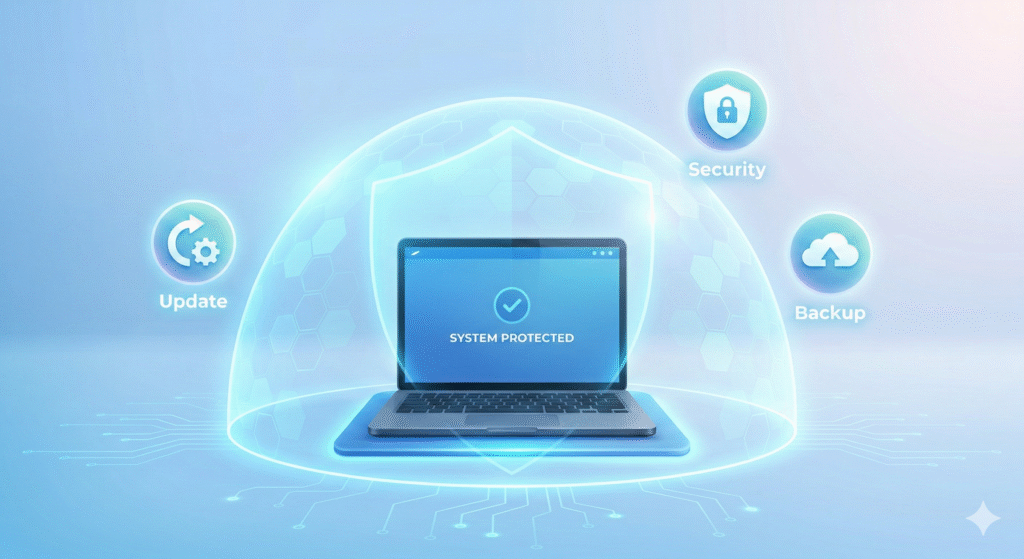
⚡ Step-by-Step Solutions
**Solution 1: Use System Restore**
System Restore reverts your computer to a point when it worked.
Steps:
1. Get to Advanced Startup Options
- Turn off computer completely
- Power on, wait for Windows logo
- See “Preparing Automatic Repair”? Wait for it
- Choose “Advanced options” when given the option
2. Choose Troubleshoot → Advanced Options → System Restore
3. Choose a restore point
- Pick a date before the problems started
- Windows will revert to that exact state
4. Wait (can take 30+ minutes)
5. Computer restarts — hopefully working now
When this works: Most software-caused boot errors
When this doesn’t work: Hardware problems, malware, drive corruption
**Solution 2: Repair Boot Files**
Boot files tell Windows how to start. If they’re corrupted:
1. Get Windows 10/11 installation media
- Borrow a friend’s computer
- Go to microsoft.com/windows/windows-11
- Download “Windows 11 Installation Media”
- Create USB bootable drive (takes 10 mins)
2. Boot from USB
- Plug USB into your computer
- Restart while holding Delete or F12 (depends on computer)
- Select USB drive to boot from
3. Choose “Repair your computer”
- Don’t click “Install”
- Click “Repair” option
4. Run automated repairs
- Windows tries to fix boot issues automatically
- Can take 20+ minutes
5. Restart
When this works: Corrupted boot sector, missing boot files
When this doesn’t work: Hardware failure, malware
**Solution 3: Check Disk (CHKDSK)**
CHKDSK scans your hard drive for errors and fixes them.
1. Get to Command Prompt
- During boot, get to Advanced Startup Options
- Choose Troubleshoot → Advanced → Command Prompt
2. Type this command:
“`
chkdsk C: /F
“`
- Press Enter
3. It asks “Do you want to schedule this to run at next startup?”
- Type Y, press Enter
4. Restart your computer
- CHKDSK runs before Windows boots (takes 20-60 minutes)
- Fixes errors it finds
- Restarts normally
When this works: Hard drive errors, file system corruption
When this doesn’t work: Hardware failure, malware
**Solution 4: Fix MBR (Master Boot Record)**
The MBR is the very first file Windows reads. If it’s corrupted, nothing works.
1. Get Command Prompt (Advanced Startup → Command Prompt)
2. Type:
“`
bootrec /fixmbr
“`
- Press Enter
3. Then type:
“`
bootrec /fixboot
“`
- Press Enter
4. Then type:
“`
bootrec /rebuildbcd
“`
- Press Enter
5. Restart
When this works: MBR corruption
When this doesn’t work: Hardware failure
**Solution 5: Uninstall Recent Updates**
Recent Windows updates sometimes break boot.
1. Get to Advanced Startup (boot troubleshooting)
2. Choose Troubleshoot → Reset this PC → Keep my files
3. Windows reinstalls (keeps your files, removes recent updates)
4. Takes 30-60 minutes
5. Boots normally after
When this works: Update caused the problem
When this doesn’t work: Other problems
**Solution 6: Check RAM**
Bad RAM can cause boot errors.
1. Restart computer
2. During boot, press F2 or Del (before Windows loads)
3. Look for “Diagnostics” or “Run Memory Test”
4. Let it test (takes 5-30 minutes)
5. If errors found: RAM is bad, need replacement
When this works: RAM failure
When this doesn’t work: Other problems
**Solution 7: Update BIOS**
BIOS is system firmware. Outdated BIOS can cause boot issues.
1. Go to your computer manufacturer’s website
- Dell, HP, Lenovo, etc.
- Find support section
2. Find your model number (bottom sticker usually)
3. Download latest BIOS update
4. Follow installation steps (very careful, don’t interrupt)
Warning: This is advanced. If you’re not comfortable, skip it or ask for help.
🛡️ How to Prevent Future Boot Issues
1. Keep Windows updated
- Settings → Windows Update
- But check that updates don’t cause problems (that’s rare)
2. Be careful with drivers
- Only install from manufacturers (HP, nvidia, etc.)
- Update monthly, but not bleeding-edge beta drivers
3. Antivirus protection
- Use Windows Defender (built-in) or paid like Norton
- Malware often causes boot issues
4. Don’t mess with startup programs
- Settings → Apps → Startup
- Only disable if you know what it is
5. Keep hard drive healthy
- CrystalDiskInfo once a month
- Back up before drive fails
6. Regular backups
- If boot is completely broken, fresh install is sometimes fastest
- Have backups so you don’t lose data
—
❓ Common Questions
Q: How long does fixing a boot error usually take?
A: Hard restart = instant. System Restore = 30-60 mins. CHKDSK = 20-60 mins. Repairs = 10-30 mins. Usually 1-2 hours total.
Q: Do I need to reinstall Windows?
A: Only as last resort. Try solutions 1-7 first. Reinstalling Windows = 2-4 hours and you lose settings.
Q: What if I don’t have Windows installation media?
A: Borrow friend’s computer, download Windows from microsoft.com, create USB. Takes 30 mins.
Q: Is boot error a hard drive failure?
A: Could be, but usually not. Check with CrystalDiskInfo or CHKDSK first.
Q: Should I go to a repair shop?
A: Only if you’re uncomfortable with any of these steps. They’ll probably charge $100-200 for what you can DIY.
—
📖 What Happened to Me
My laptop wouldn’t boot last year. I panicked thinking I lost everything. Tried hard restart = nothing. System Restore = nothing.
Then I tried CHKDSK. It found and fixed 47 errors on my hard drive. Computer booted normally after.
Lesson: The simple stuff usually doesn’t work. The slightly more technical stuff usually does.
—
💬 Your Turn
Had a boot error? What fixed it? Share in comments. Your experience might help someone else.
—



 Spanish
  English