


🚨 Quick Version (If You’re Panicking Right Now)
Your hard drive failed. Yeah, that sucks. But don’t panic — most of your data is still there.
Here’s what to do RIGHT NOW:
1. Stop using your computer immediately — every minute you use it risks more data loss
2. Back up what you can — if the drive is still partially working, grab important files NOW
3. Call a professional — if nothing is working, professional recovery costs way less than losing everything
Keep reading for your options.
—
🔍 Why Did This Happen?
Hard drives fail. It’s not a matter of if, but when. Here’s why:
Two types of failures:
Logical failures — The hard drive itself is fine, but the file system or operating system got corrupted. Think of it like your filing cabinet is intact, but someone scrambled all the labels. Your data is there, just not accessible.
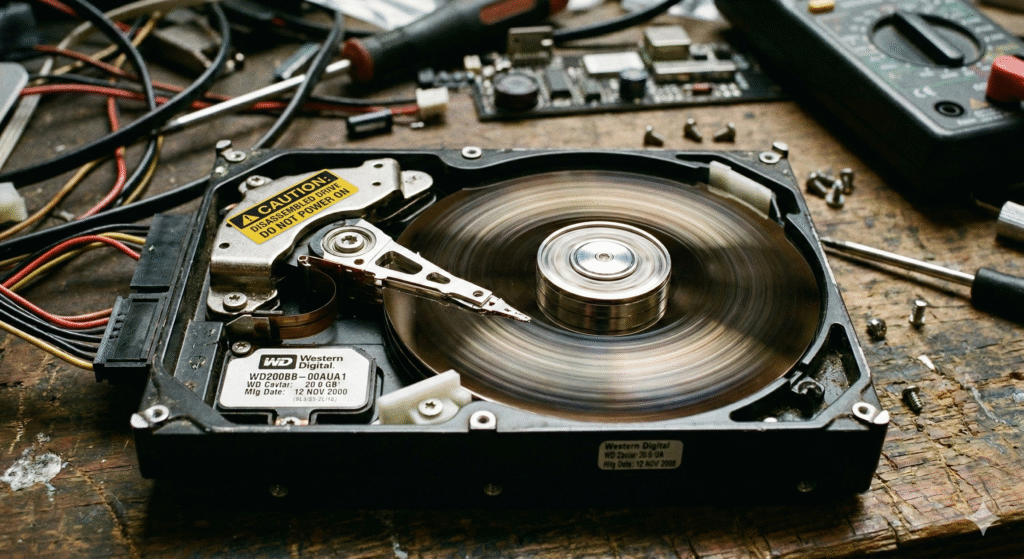
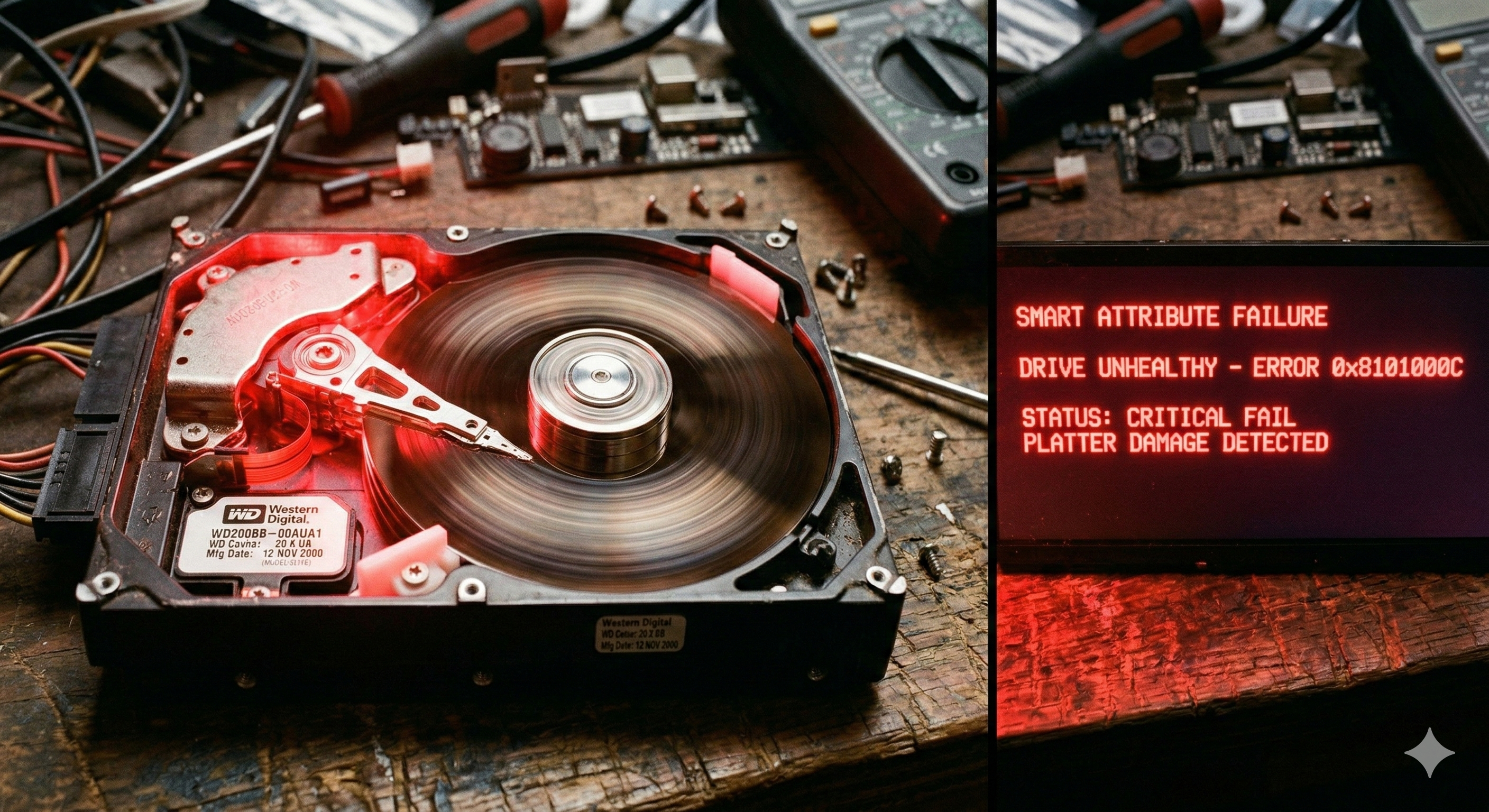
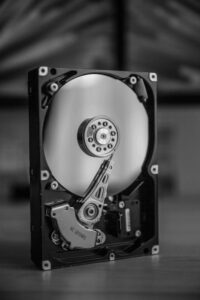
Mechanical failures — The physical parts are broken. The spinning platters, the read/write heads, the motor. This is the bad one. It’s like your filing cabinet physically broke.
Common causes:
- **Your drive is old** (they typically last 3-5 years with heavy use)
- **Overheating** (dust buildup = bad cooling)
- **Physical drops or bumps** (even a small fall can damage it)
- **Power surges** (one bad lightning strike can destroy everything)
- **Water damage** (spilled coffee counts)
- **Just bad luck** (sometimes drives fail for no reason)
The good news? Most of the time, your data is still there. It’s just not accessible right now.
⚡ Professional Recovery vs. Doing It Yourself
Let’s be real: Should you DIY or call the pros?
| Situation | Best Option | Why |
|———–|————|—–|
| Drive makes clicking/beeping sounds | PROFESSIONAL | Mechanical failure — DIY makes it worse |
| Drive won’t spin up at all | PROFESSIONAL | Something is broken inside |
| Drive is recognized but files are corrupted | Try DIY first | Could be logical failure |
| Drive works but you accidentally deleted files | DIY software can work | Files still exist, just marked for deletion |
| Drive got wet | PROFESSIONAL | Water damage is complex |
| You have photos/videos you can’t lose | PROFESSIONAL | Irreplaceable > cost savings |
| DIY didn’t work | PROFESSIONAL | But it may cost more now |
Real talk:
- Professional recovery succeeds 70-90% of the time (depending on damage)
- DIY software works maybe 20-40% for severe failures
- If DIY fails, professional recovery costs MORE because they have to fix your DIY damage first
When to try DIY:
- You deleted files by accident (and haven’t used the drive since)
- The drive is recognized by your computer but files won’t open
- You don’t have anything on there you can’t afford to lose
- You want to save money and are okay with potential failure
When to call professionals:
- Physical damage (drops, water, fire)
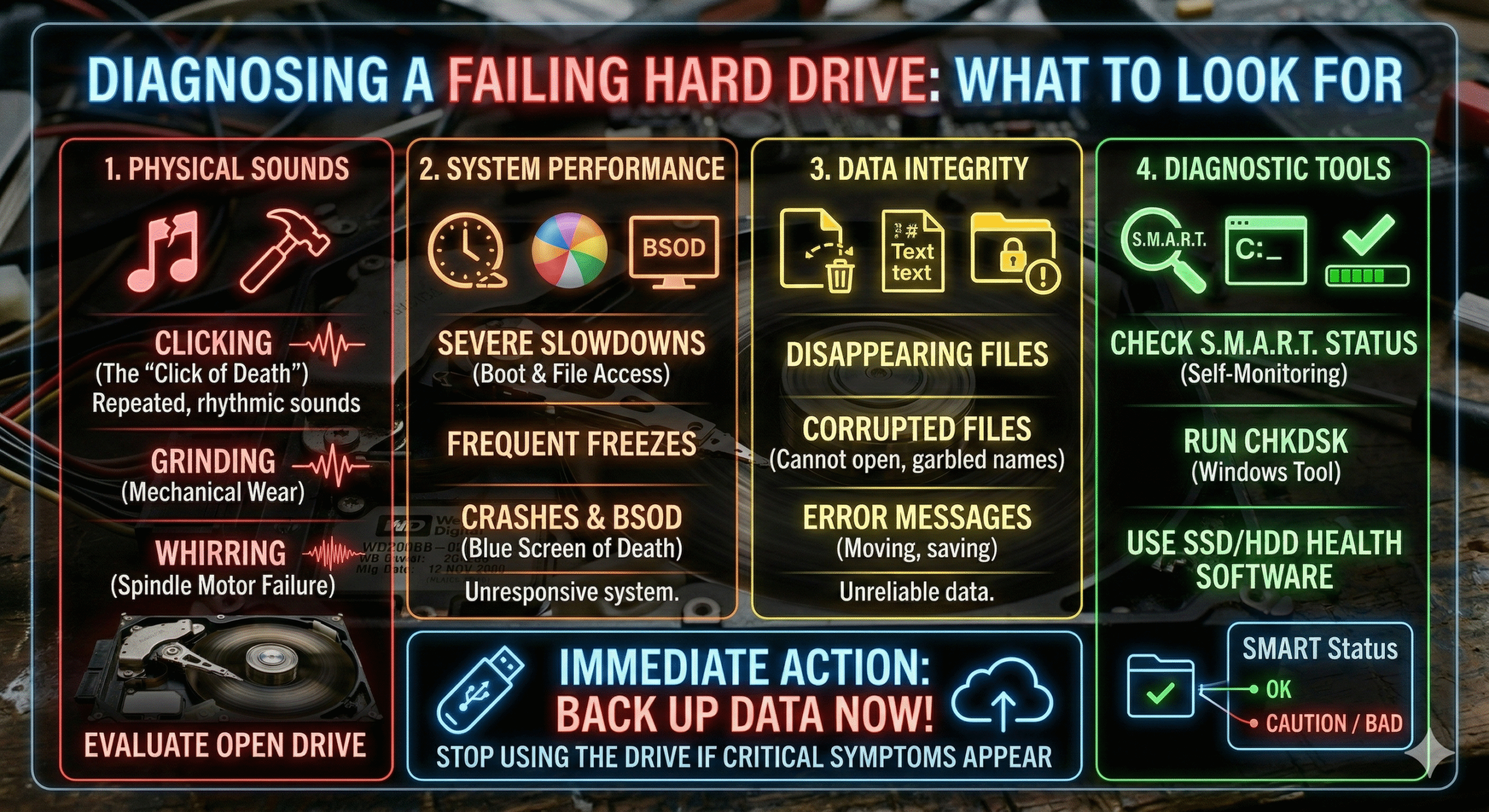
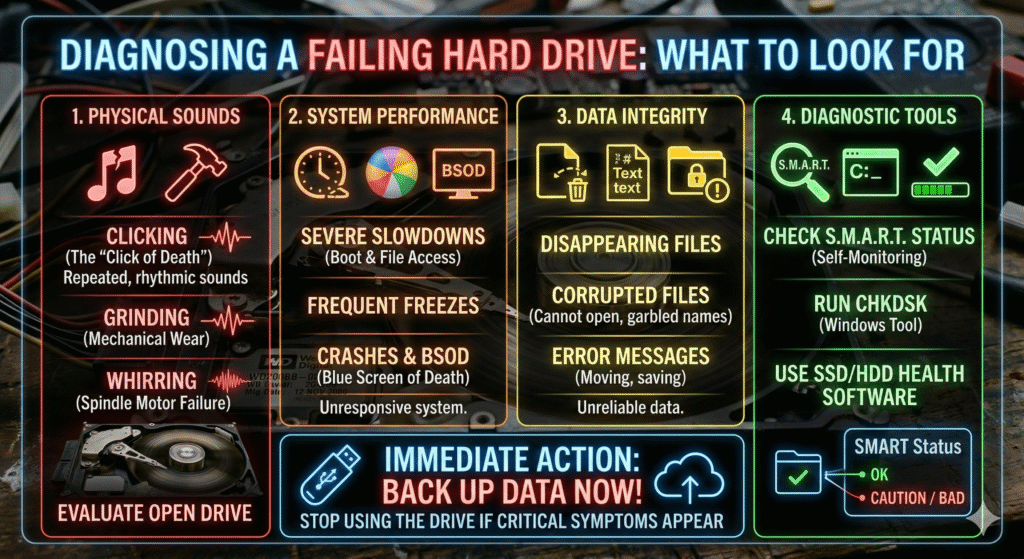
- Mechanical sounds (clicking, grinding, beeping)
- Your data is irreplaceable
- DIY software didn’t work
- You need the data urgently
—
🛠️ How to Actually Recover Your Data
**Option 1: If the Drive is Still Recognized (DIY)**
If your computer still detects the drive, you have a shot:
Step 1: Don’t install recovery software on the same drive
- Use another computer (borrow a friend’s laptop if you need to)
- This is critical. Installing software on the failed drive overwrites data
Step 2: Download recovery software on a working computer
Good free options:
- **EaseUS Data Recovery Wizard** (free version is solid)
- **Recuva by Piriform** (easy to use, reliable)
- **MiniTool Power Data Recovery** (good for various file types)
- **PhotoRec** (if you only need photos/specific files)
Step 3: Connect the failed drive to another computer
You’ll need:
- **USB adapter/enclosure** ($15-30 on Amazon)
- This makes the dead drive appear as an external USB drive
- Much safer than installing it internally
Step 4: Let the software scan
This can take hours — be patient. Don’t interrupt it.
- Quick scan = 30 minutes (finds recently deleted files)
- Deep scan = 2-8 hours (finds older/deeply deleted files)
- It’s slow but thorough
Step 5: Recover to a different drive
- **Never recover to the same drive** — this overwrites data
- Use an external drive, USB drive, or another internal drive
- Once you’ve got your files back, you’re done
Important: If you hear clicking sounds or the drive doesn’t spin up during recovery, STOP. Don’t risk making it worse. Go professional.
**Option 2: Partial Access (Some Files Working)**
Sometimes your drive partially works:
1. Immediately copy any accessible files to an external drive
2. Don’t let the computer go into sleep/hibernate — keep it running (it might not wake up)
3. Work in safe mode — Press Shift + F8 during boot, choose Safe Mode
4. Once you’ve grabbed what you can, then decide: Keep trying DIY or go professional?
This is a race against time. Every minute the drive is working, it might be dying more.
**Option 3: Professional Data Recovery (The Right Way)**
If mechanical failure or DIY didn’t work:
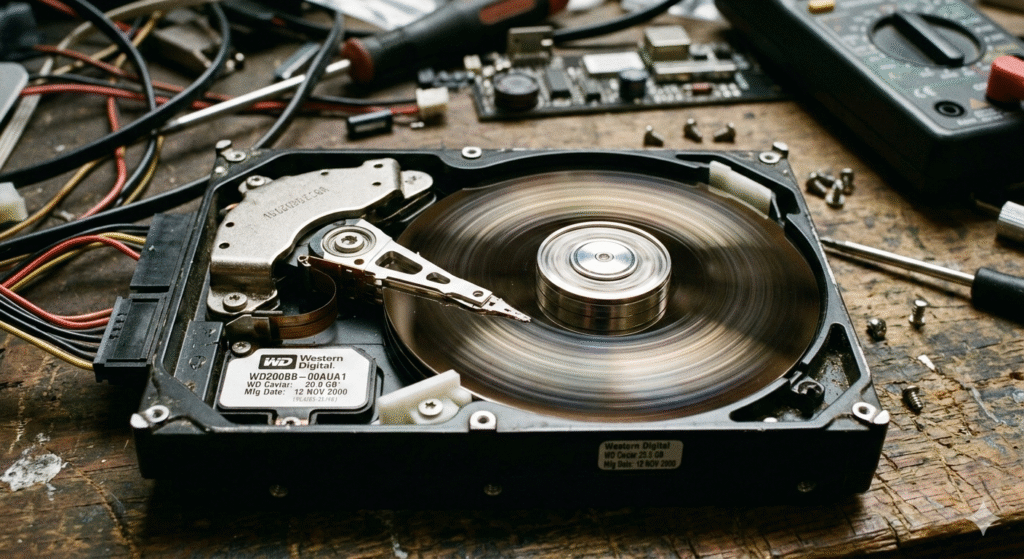
Step 1: Don’t open the drive yourself
- Seriously, that’s how data dies permanently
- Even one dust particle can ruin the platters
Step 2: Find a reputable recovery service
- Ask friends for references
- Check Google reviews (look for recent ones)
- Call 2-3 places and get quotes
Step 3: Get a quote first
- Most don’t charge just to look at it
- This is important — you need to know the cost upfront
Step 4: Expect to pay $300-$3,000
- Yes, really
- Depends on damage severity
- Simple logical failures: $300-600
- Mechanical failures: $800-2,000+
- Complete destruction: $2,000-3,000+
Step 5: Ask these questions before committing:
- What’s your success rate? (Should be 70%+)
- How long does recovery take? (1-7 days typical)
- Do you have insurance? (In case something goes wrong)
- What’s your final cost if recovery fails? (Some charge; some don’t)
- Can I get my drive back even if recovery fails? (Usually yes)
What professionals have that you don’t:
- Clean rooms (no dust = no data destruction)
- Donor parts (they can swap broken components)
- Specialized tools (firmware readers, platter recovery equipment)
- Experience (they’ve fixed thousands of drives)
—
🛡️ How to Never Let This Happen Again
Now that you’re (hopefully) recovered your data, never let this happen again:
1. Set up automatic backups
- Windows Backup, Google Drive, OneDrive, Backblaze — something
- “I’ll back up later” = you won’t. Make it automatic.
- Target: Weekly backups, minimum
2. Use a 3-2-1 backup strategy:
- **3 copies** of your data
- **2 different media types** (external drive + cloud)
- **1 copy offsite** (cloud backup, so if your house burns down, you’re okay)
Example:
- Copy 1: Your computer
- Copy 2: External hard drive at home
- Copy 3: Google Drive / iCloud / Backblaze in the cloud
3. Monitor your hard drive health:
- Download **CrystalDiskInfo** (free, takes 30 seconds to check)
- Check your drive status monthly
- If it says “Caution” or “Bad,” back up immediately and replace the drive
4. Keep your computer cool:
- Dust out your PC every 3-6 months with compressed air ($5)
- Don’t block vents (seriously, keep fans clear)
- Use a laptop cooling pad if you use a MacBook doing heavy work
5. Use a surge protector:
- $20-50 now = $300+ hard drive replacement later
- Lightning strikes happen. Protect yourself.
6. Replace old drives proactively:
- Drives older than 5 years = back up NOW, replace soon
- Just because it works doesn’t mean it won’t fail tomorrow
- A new 2TB drive is $50-100. Your data is worth more.
—
❓ Questions People Always Ask
Q: How much of my data will I recover?
A: Depends on damage. Logical failures? 80-100%. Mechanical failures? 50-90%. Physical damage (fire, water, multiple component failure)? Could be zero, could be everything. It’s hard to predict.
Q: Can I recover data from a drive that fell in water?
A: Maybe, but don’t try DIY. Professional services can handle water damage, but you need clean room conditions and proper drying techniques. Immediate DIY = probably kills the drive.
Q: Should I recover to an external hard drive or SSD?
A: External SSD is better — no moving parts means more reliable long-term. But honestly, get a cloud backup too. One copy isn’t enough.
Q: If I recover data, can I use the same hard drive again?
A: Not if it had a mechanical failure. Once the mechanics are broken, they’re broken. If it’s a logical failure and you had professional service, maybe, but why risk it? A new drive costs $50-150. Your data is worth more.
Q: What’s the cheapest way to recover data?
A: Logical failures + DIY software = cheapest ($0-50). Mechanical failures = no such thing as cheap. Just pick professional or accept the loss.
Q: How long does professional recovery take?
A: 1-7 days typically. Complex cases might take 2+ weeks. Call and ask — they’ll give you a timeline.
Q: Is recovery guaranteed?
A: No. Some drives are too damaged. But professionals succeed 70-90% of the time. That’s way better than DIY (20-40% success rate).
—
📖 What Happened to Me
I once had a client who lost their entire business database to a failed hard drive. They’d never backed up anything. Ever. It was a nightmare.
The professional recovery cost $1,500, took 2 weeks, and recovered about 85% of their data. Enough for them to keep the business running, but they lost some recent files.
That day, I learned: Backup costs $0-20/month. Recovery costs $300-3,000. Losing your data costs everything.
Now anytime someone says “I’ve never had a backup fail, so I don’t need one,” I tell that story. You don’t recover from catastrophic failure by being lucky. You recover by being prepared.
—
💬 Your Turn
Have you lost data before? Did you recover it? What did you learn the hard way? Drop a comment — I read every one.
And hey, if this helped you, share it with someone whose drive just died. They’ll need it. Send them this link.
—
📚 Related Posts to Read Next
- How to Back Up Your Computer (The Right Way)
- 10 Warning Signs Your Hard Drive is About to Die
- SSD vs HDD: Which Should You Buy in 2026?
—
—



 English
  Spanish